
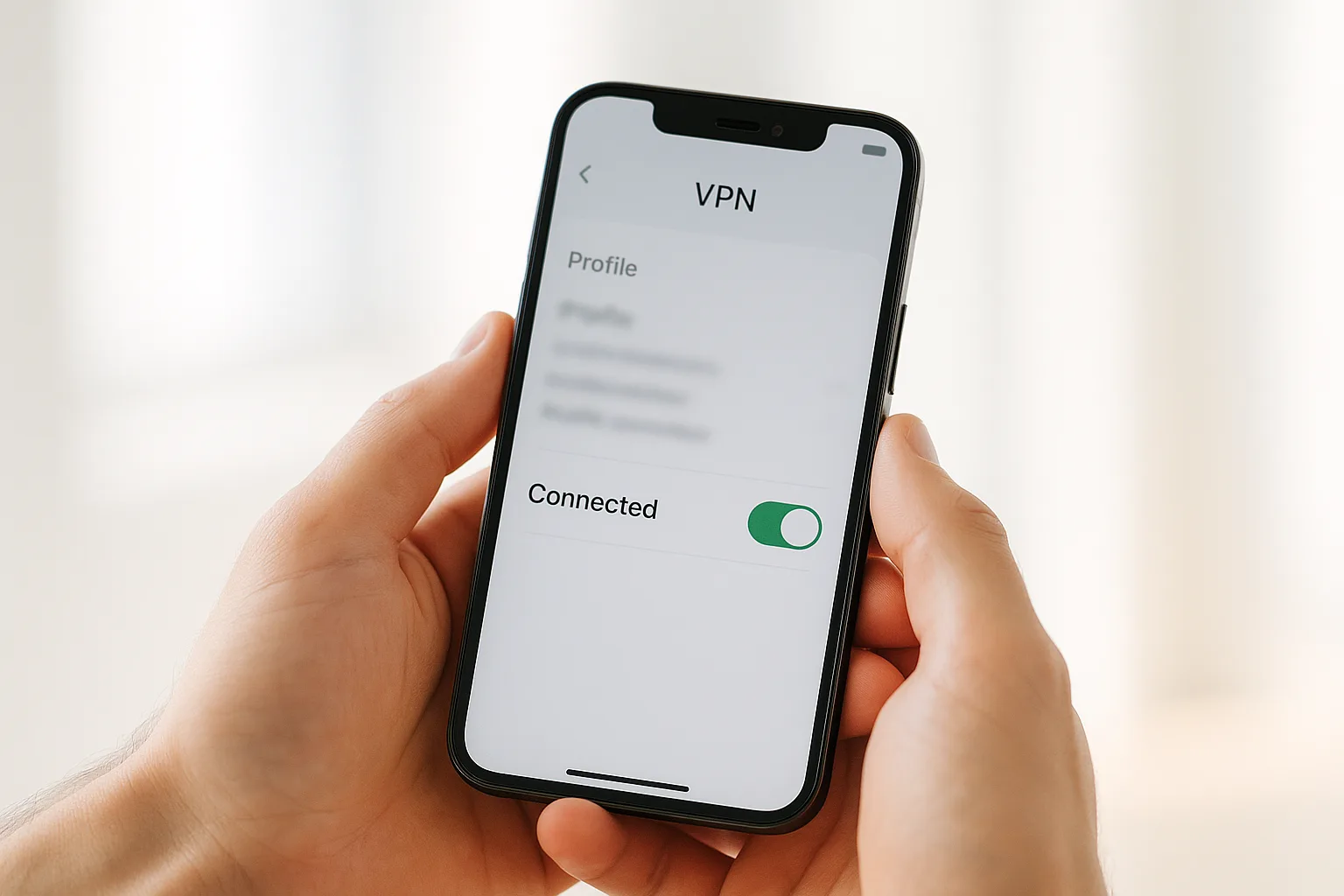
What OpenVPN on iPhone Does
OpenVPN Connect is the official OpenVPN client for iOS (iPhone and iPad). It imports a .ovpn configuration file and builds a device-level VPN tunnel, so your whole iPhone routes through the endpoint in that config — every app and every browser, not just one. That whole-device coverage is why OpenVPN also catches browser features like WebRTC that a per-app proxy can miss. If you want per-app or rule-based routing instead, use Shadowrocket.
The app is free on the App Store. Once you have your config file, the setup below takes about five minutes.
Before You Start
Have these ready:
- An active proxy plan with OpenVPN access from your GermanProxy.io account.
- Your
.ovpnconfiguration file for your German mobile endpoint. If you use a mobile proxy from us, message us on Telegram and we will send you your OpenVPN config. - Your username and password for the connection, if your config requires them.
Note that OpenVPN routes the entire device, so once connected, all iPhone traffic goes through your German mobile endpoint until you disconnect.
Step 1: Install OpenVPN Connect
Open the App Store, search for OpenVPN Connect, and install it. Open the app when it finishes downloading and accept the initial data-sharing and terms prompts.
Step 2: Save Your Config File to the iPhone
Get your .ovpn file onto the device first — save it to the Files app or to your cloud storage (iCloud Drive, Dropbox, etc.). Keep the file as-is; OpenVPN profiles must be plain UTF-8 text and under 256 KB, which a standard .ovpn config already is.
Step 3: Import the Config into OpenVPN Connect
You have two ways to import:
- From inside the app: open OpenVPN Connect, tap the menu, choose My Profiles, tap the add (+) icon, then Upload File, and select your
.ovpnfile. - From the Files app: tap the
.ovpnfile, choose Share, then Copy to OpenVPN (or Open in OpenVPN).
Either way, OpenVPN Connect shows the profile and asks you to import it. Tap Add (or Import) to save it.
Step 4: Enter Your Credentials
If your config uses username and password authentication, OpenVPN Connect prompts for them when you add the profile. Enter your username and password exactly as issued, and optionally let the app save them so you do not re-enter them each time.
Step 5: Connect to the Mobile Proxy
- On the My Profiles screen, tap the toggle next to your imported profile.
- The first time you connect, iOS asks to add a VPN configuration. Tap Allow and confirm with your passcode or Face ID — this lets OpenVPN route traffic on your device.
- Wait for the status to turn Connected (green).
Step 6: Verify Your IP
Confirm your iPhone is now routing through the German mobile IP. Follow Test your mobile proxy setup — or run our traffic check — and check that the IP and location match your German mobile endpoint. If they do, your whole device is now running on your German mobile connection.
That's it — your iPhone traffic now runs through your German mobile proxy.
FAQ
Does OpenVPN route all iPhone traffic or just one app?
OpenVPN Connect creates a device-level VPN tunnel, so it routes your entire iPhone through the German mobile endpoint, not a single app. If you want per-app or rule-based routing instead, use Shadowrocket.
Where do I get the .ovpn config file?
The .ovpn file is issued for your endpoint. If you use a mobile proxy from us, message us on Telegram and we will send you your OpenVPN config for your active plan. Save it to the Files app or your cloud storage first.
My IP does not change after connecting — why?
It depends which "IP". If a lookup still shows your own address, the tunnel isn't carrying your traffic yet — confirm the OpenVPN profile shows a green connected status, your username and password are correct, and your plan is active, then retest with our traffic check. If it shows a German IP but always the same one, that's expected: your German mobile IP is sticky and holds for the whole session. To switch to a fresh German IP, use your IP-change link (on-demand rotation) — see sticky sessions and IP rotation.
Does this also work on Android?
Yes — the same .ovpn config works with OpenVPN on Android. See Set up a mobile proxy with OpenVPN on Android.
CTA
Run your iPhone on a real German mobile IP. Get a German mobile proxy — HTTP/SOCKS5/OpenVPN, sticky sessions, fair-use 20 GB/day.
Get a German mobile proxy: Real 4G/5G IPs from Germany, fair-use 20 GB/day — see German 4G/5G mobile proxy options or start with a dedicated 5G proxy.