
Direct Answer
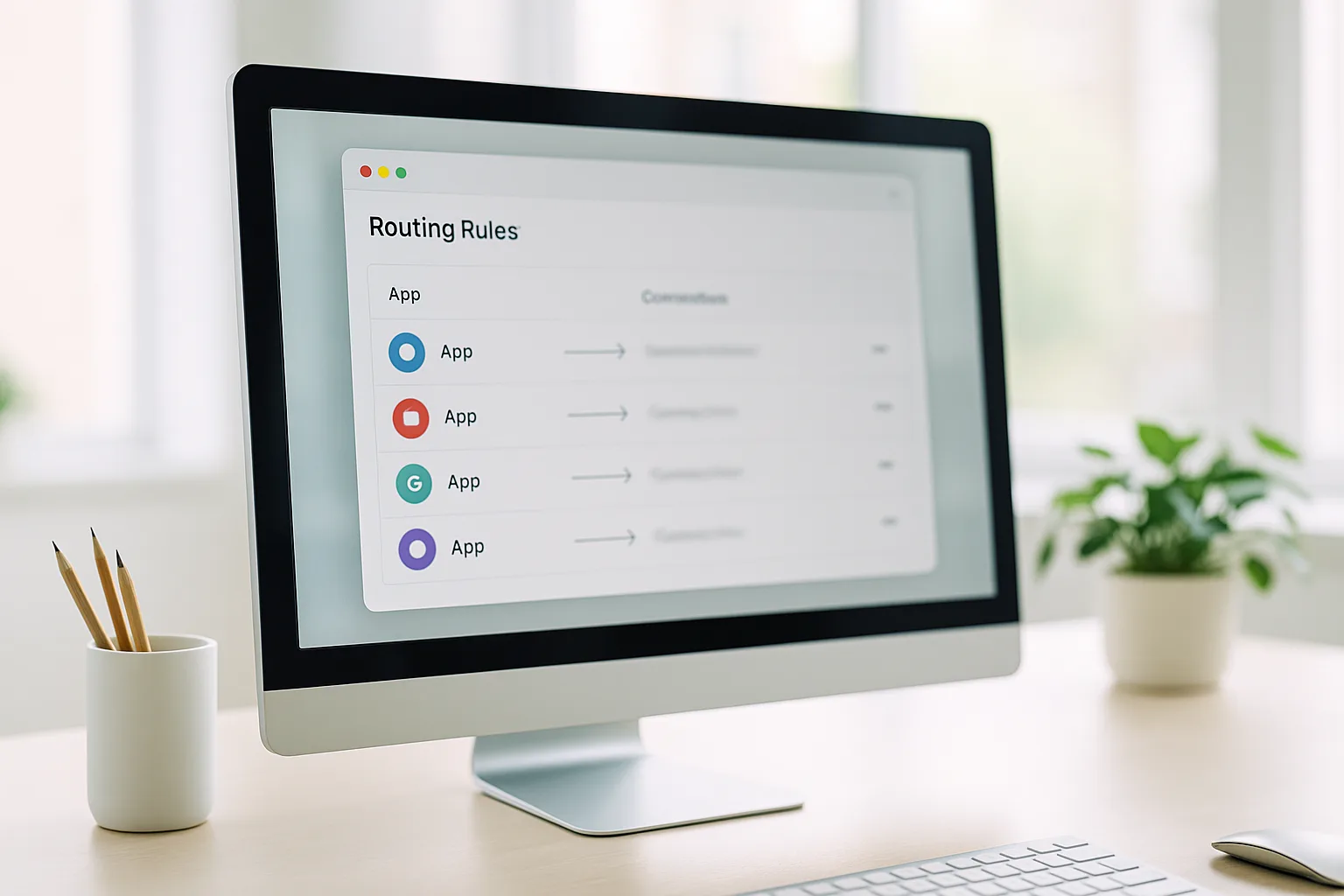
To route specific apps through a mobile proxy, use Proxifier on Windows, macOS or Android. Add your German mobile endpoint as a SOCKS5 (or HTTPS) proxy server with your username and password, then create a rule that sends only the apps you choose through it. Everything else stays on your normal connection.
What Proxifier Is For
Proxifier (Windows, macOS and Android) sits between your apps and the network and applies per-app rules: you decide which programs route through your German mobile IP and which use your direct connection. That makes it the middle ground between OpenVPN — which routes the whole machine — and a browser extension, which covers only the browser. Use Proxifier when you want, say, one scraper or one browser on the mobile IP while the rest of the PC stays local.
Before You Start
Have these values from your GermanProxy.io account ready:
- Host and port of your endpoint
- Username and password
The steps use PROXY_HOST, PORT, USER and PASS as placeholders. GermanProxy.io supports HTTP, SOCKS5 and OpenVPN — for Proxifier, SOCKS5 is the usual choice.
Step 1: Add Your Proxy Server
- Open Proxifier and go to Profile → Proxy Servers.
- Click Add.
- Enter:
- Address:
PROXY_HOST - Port:
PORT - Protocol: SOCKS5 (or HTTPS)
- Address:
- Tick Authentication, then enter
USERandPASS. - Click OK. When asked to use this as the default proxy, you can decline — you'll set a targeted rule instead.
Step 2: Create a Per-App Rule
- Go to Profile → Proxification Rules.
- Click Add.
- Give the rule a name, e.g.
Mobile-IP apps. - Under Applications, choose the program(s) you want on the mobile IP (e.g. a specific browser or tool).
- Set Action to your proxy server from Step 1.
- Click OK.
Leave the Default rule set to Direct so everything else stays on your normal connection.
Step 3: Verify the Routing
- Open one of the apps you added to the rule and visit our traffic check (or any IP-lookup service).
- Confirm that app shows your German mobile IP, while an app left on Direct still shows your normal IP.
Proxifier's live connection log also shows which app is routed through the proxy in real time.
On Android
Proxifier also has an Android app that mirrors the desktop layout, so the flow is the same:
- Install Proxifier for Android — it's on Google Play, and you can always grab it from the official proxifier.com downloads page. Open it.
- Add your proxy server — Address
PROXY_HOST, PortPORT, Protocol SOCKS5 — then enable authentication and enterUSERandPASS. - Create a proxification rule that sends the apps you choose through that server; leave the default action on Direct.
- The first time, Android asks to set up a local VPN connection — allow it so Proxifier can route traffic.
- Open a routed app and check your IP on our traffic check (or any IP-lookup service).
If you only need straightforward per-app routing on Android, the Super Proxy app is a lighter alternative; for whole-device routing use OpenVPN on Android.
When to Use Something Else
- Whole machine on the mobile IP → OpenVPN on Windows.
- Browser only → FoxyProxy.
- Code / automation rather than desktop apps → use a mobile proxy with Python.
FAQ
Does Proxifier work on macOS and Android too?
Yes. Proxifier runs on Windows and macOS with the same per-app rule model, and there's an Android app that mirrors it. On Android, the Super Proxy app is a simpler alternative if you only need per-app routing.
Why SOCKS5 rather than HTTP?
SOCKS5 handles all traffic types and is the most flexible choice for routing whole applications. For the difference, see HTTP vs SOCKS5 proxies.
Can I route only one browser and leave the rest of the PC local?
Yes — that is exactly what the per-app rule does. Add just that browser to the rule and keep the default action on Direct.
CTA
Route the apps that matter through a real German mobile IP. Start with a German mobile proxy — HTTP/SOCKS5/OpenVPN, sticky sessions, fair-use 20 GB/day.
Get a German mobile proxy: Real 4G/5G IPs from Germany, fair-use 20 GB/day — compare German mobile proxy plans or get a dedicated proxy on the Blue network.