
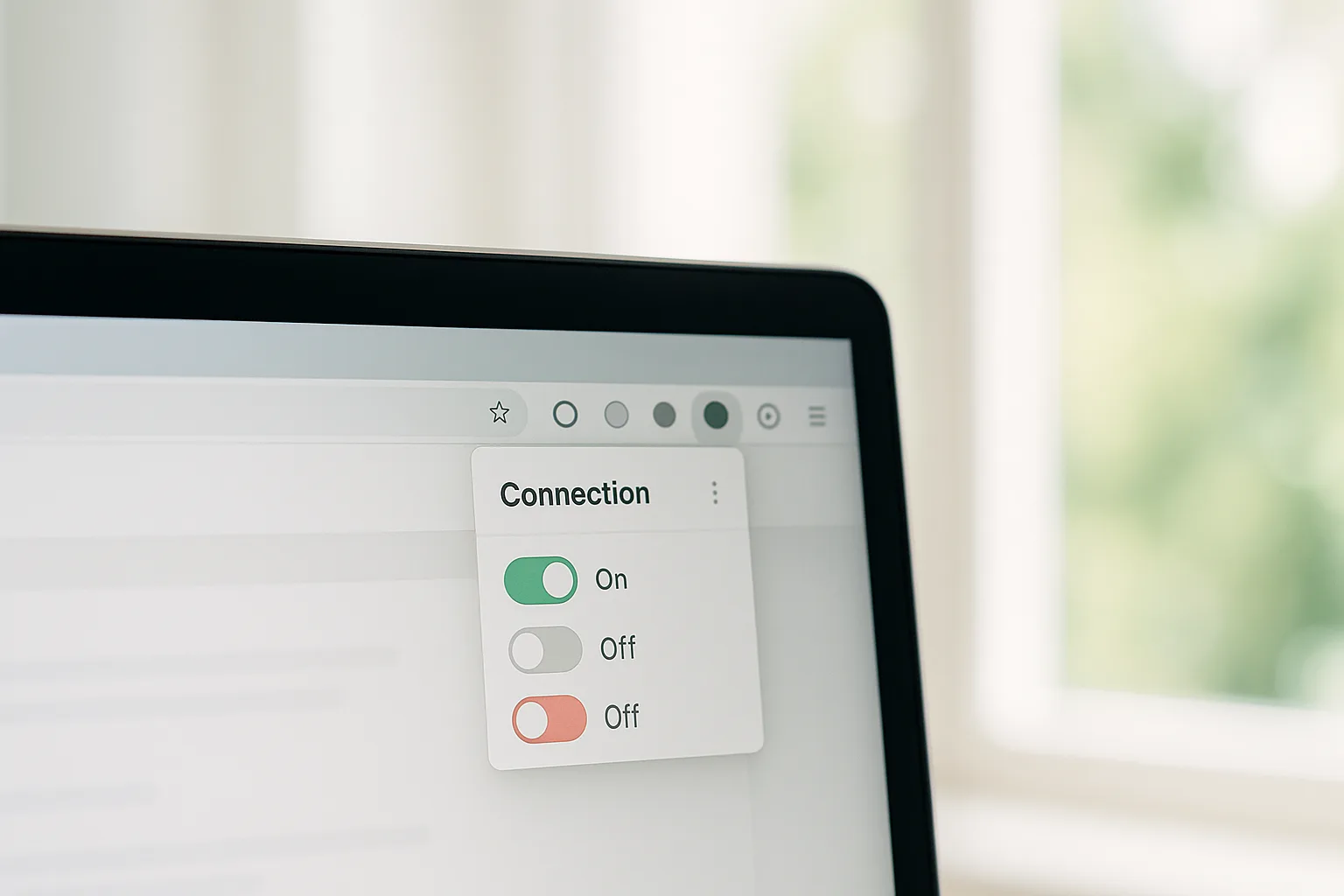
Direct Answer
To use a mobile proxy in your browser, install the free FoxyProxy Standard extension for Chrome or Firefox, open Options, go to the Proxies tab and click Add. Enter your endpoint's hostname, port, username and password, choose the Type, and switch it on. FoxyProxy routes only your browser traffic through your German mobile IP — the rest of the system stays direct.
What FoxyProxy Does — and Doesn't
FoxyProxy is a free, open-source browser extension that routes only your browser's traffic through a proxy. That is its strength (quick to switch on and off, per-pattern rules) and its limit: apps outside the browser keep using your normal connection. If you need the whole machine on the mobile IP, use OpenVPN; for selected desktop apps, use Proxifier.
Before You Start
Have these values from your GermanProxy.io account ready:
- Hostname and port of your endpoint
- Username and password
The steps use PROXY_HOST, PORT, USER and PASS as placeholders.
One thing decides your proxy Type: SOCKS5 with a username and password only works in Firefox. Chrome does not support SOCKS authentication — so in Chrome, choose HTTP. In Firefox either HTTP or SOCKS5 works with credentials.
Step 1: Install FoxyProxy
Add FoxyProxy Standard from the Chrome Web Store or Firefox Add-ons. Both stores ship version 8, which shares one code base across browsers. Pin its icon to your toolbar for quick access.
Step 2: Add Your Proxy
- Click the FoxyProxy icon and open Options.
- Open the Proxies tab and click Add.
- Fill in the fields:
- Title:
German Mobile - Type: HTTP (use this in Chrome). In Firefox you may also pick SOCKS5.
- Hostname:
PROXY_HOST - Port:
PORT - Username:
USERand Password:PASS
- Title:
- The change saves automatically — close the Options tab when done.
Step 3: Switch It On
Click the FoxyProxy icon and select your German Mobile proxy to enable it for all browser traffic. (FoxyProxy can also match by URL pattern if you want only certain sites routed — set that under the proxy's URL patterns.)
Step 4: Verify Your IP
In the same browser, open our traffic check — or any IP-lookup service — and confirm the IP and location match your German mobile endpoint.
Important: Browser-Only Means Watch for Leaks
Because FoxyProxy covers only browser traffic, two things still need care:
- WebRTC can reveal your real IP from inside the browser even while the proxy is active. Test and prevent it — see what a WebRTC leak is.
- Other apps on your computer are unaffected. If a task must run entirely on the mobile IP, route the device with OpenVPN instead.
This is basic hygiene for clean, reliable data — not about hiding anything.
FAQ
Does FoxyProxy route my whole computer?
No. It covers browser traffic only. For the whole machine, use OpenVPN; for selected apps, Proxifier.
HTTP or SOCKS5 in FoxyProxy?
It depends on your browser. In Chrome, choose HTTP — Chrome does not support SOCKS authentication, so a SOCKS5 proxy with a username and password will fail. In Firefox, SOCKS5 works with credentials and can also hand DNS resolution to the proxy. When in doubt, HTTP works everywhere. See SOCKS5 vs HTTP proxy.
Can I route only specific sites through the mobile IP?
Yes. Add URL patterns to the proxy so only matching sites use it, while everything else loads on your direct connection.
CTA
Put your browser on a real German mobile IP. Get a German mobile proxy — HTTP/SOCKS5/OpenVPN, sticky sessions, fair-use 20 GB/day.
Get a German mobile proxy: Real 4G/5G IPs from Germany, fair-use 20 GB/day — compare German mobile proxy plans or try a shared 5G German proxy.